Layout Manager for Dummies
The layout manager in Moon framework is one of the core engines and it can be cumbersome at times with so many options. We will use this tutorial to simplify it and go through all the available options. In the screenshot below, you can see different colors and numbers representing settings for different areas in the Layout Manager.
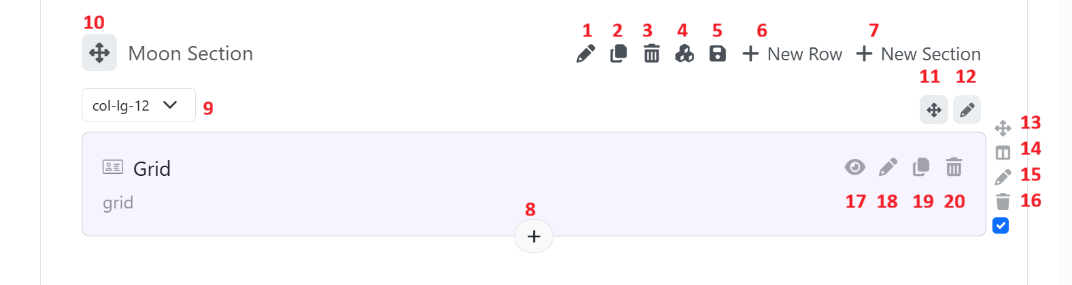
- Edit the section-level settings.
- Duplicate the section.
- Delete the section.
- Load a section from Sub-layouts
- Save a section to the library
- Add a new row to the current section
- Add a new section adjacent to the current.
- Add a new element to the current column
- Restructure the number of columns in the current section.
- Hold the icon to move the section up or down in the layout manager.
- Hold the icon to move the column
- Click on the icon to edit the column settings
- Hold the icon to move the row
- Select a grid layout for the row
- Edit the row settings
- Delete the row
- Enable or disable the element
- Edit the element settings.
- Duplicate the element.
- Delete the element.
Moon is structured in the following way:
-
Sections (You can have unlimited sections)
-
Rows (Inside each section, you can have unlimited rows, rows stand vertically inside a section.)
-
Columns (Inside each row, you can have a maximum of 12 columns, this is based on the standard bootstrap Grid system, Columns are horizontal containers.)
-
Elements (Inside each column you can have unlimited elements, elements stand vertically inside the column.)
Animations, Custom Background options & Responsive settings are available for sections, columns and elements.
You can move elements within the columns.
You can move rows and columns within the section.
You can move sections within the layout.