Color
Moon makes it simple to change the colors of your Moodle website — no coding needed! This guide will help you understand how to update your site’s colors step by step.
The built-in color picker works with both light mode and dark mode (If you enable the color mode option), so you can preview and adjust colors accordingly.
📍 Where to Start?
- Log in to your Moodle Site Administrator Panel
- Go to: Appearance > Themes
- Click the setting icon of the Moon theme
- Go to the Colors tab
📘 Color Groups You Can Edit
Colors are grouped by different parts of your website. Here’s what each group means:
⸻
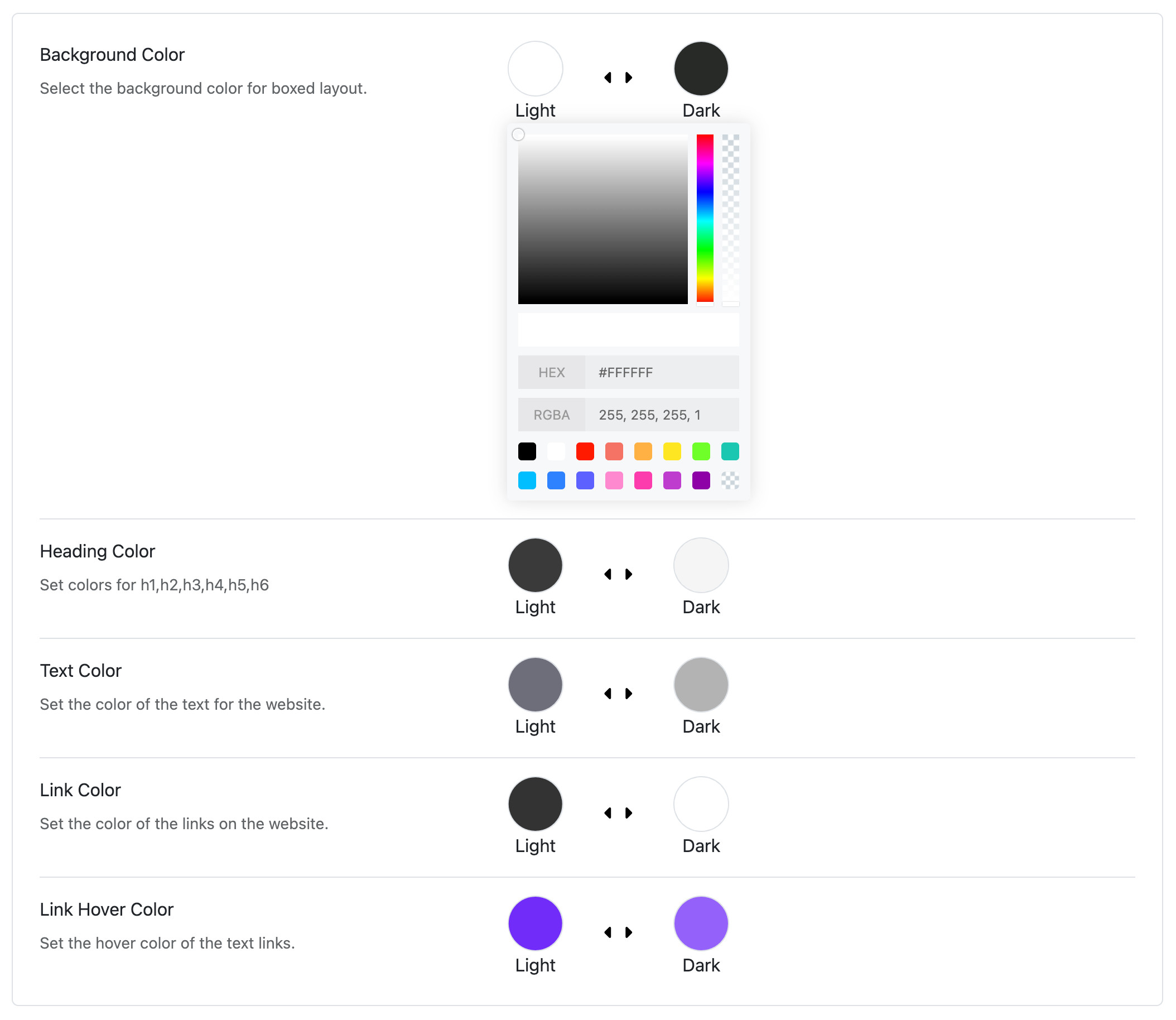
🧍♂️ Body Colors (Main Page Content)
- Background Color – The main background of your website.
- Heading Color – The color of titles and headings.
- Text Color – The regular text color.
- Link Color – Color of clickable links.
- Link Hover Color – Link color when you hover your mouse.
⸻
🧢 Header Colors (Top Section of the Site)
- Header Background – Color behind your logo and menu.
- Header Text & Headings – Colors of text in the header.
- Header Link & Hover – Menu link colors in the header.
⸻
📌 Sticky Header Colors (Header Stays at Top on Scroll)
Background, link colors, and mobile icon colors when the sticky header is visible.
⸻
📋 Main Menu Colors
- Menu link text color.
- Hover and active (selected) link colors.
- Background colors for hover or active states.
⸻
🔽 Dropdown Menu Colors
- Submenu background and text colors.
- Hover and active item colors.
⸻
🗄️ BLock Drawer
⸻
📱 Mobile Menu Colors
Astroid supports 2 types of mobile menus:
- Off-canvas menu (slides from the side).
- Mobile menu (simple dropdown style).
You can change:
- Background colors
- Text and link colors
- Menu icon color (hamburger menu)
- Active item colors
⸻
🖱 How to Change a Color
- Click on the color box in any section.
- Pick a new color using the color picker or enter a color code (like #ff6600).
- Click Save to apply your changes.
- Clear cache if you don’t see updates right away.
⸻
💡 Tips
- Use your brand colors for a professional look.
- Make sure text and background colors have good contrast for readability.
- Try different combinations and use the Preview to see how it looks.