breadcrumb-background
Here below is the way to change a section background image in Moon framework, not only for the Breadcrumb section, but for any other section in the layout.
🔧 Change Background Image
1. Open Template Settings
- Go to **Moodle Admin → Site Administration → Appearance → Themes → Kandei Settings → Layout → Sublayout
- The theme breadcrumb is created using a Sub-Layout. This sub-layout is then inserted into the Main Layout, allowing you to reuse and manage the breadcrumb content easily.
2. Go to Sub-Layout Builder
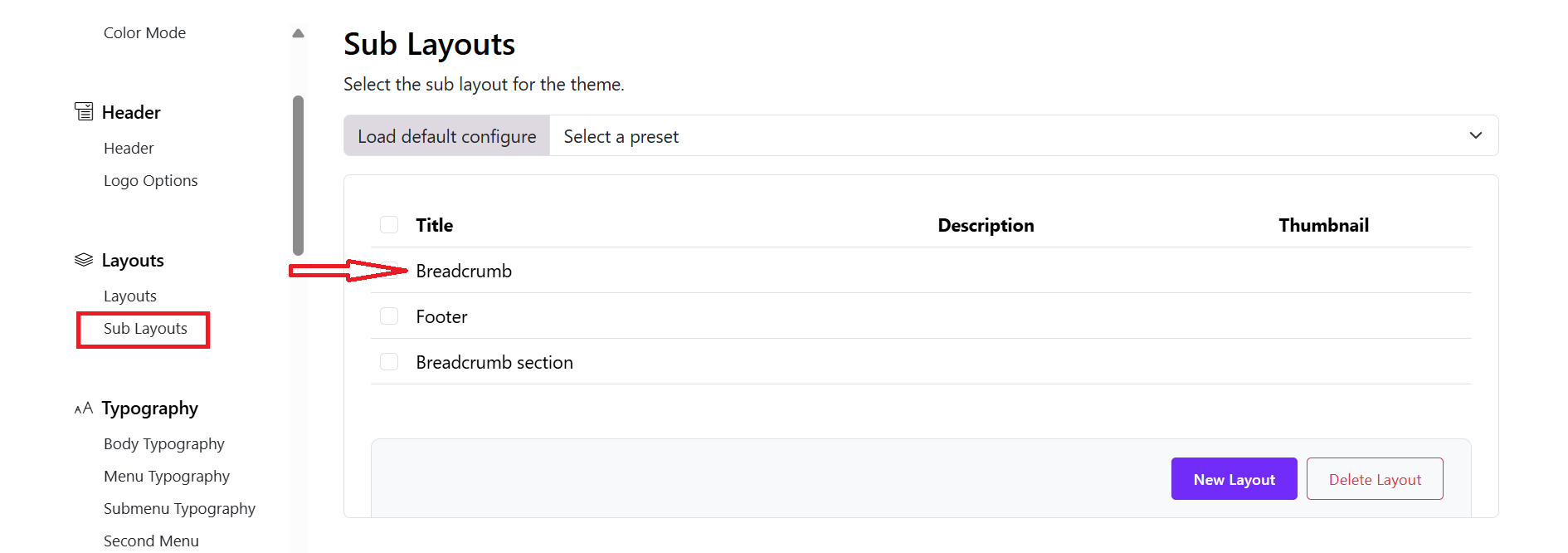
- Open the “Sub-Layout” tab > You will see a list of prebuilt sub-layouts, and edit the Breadcrumb sub-layout.
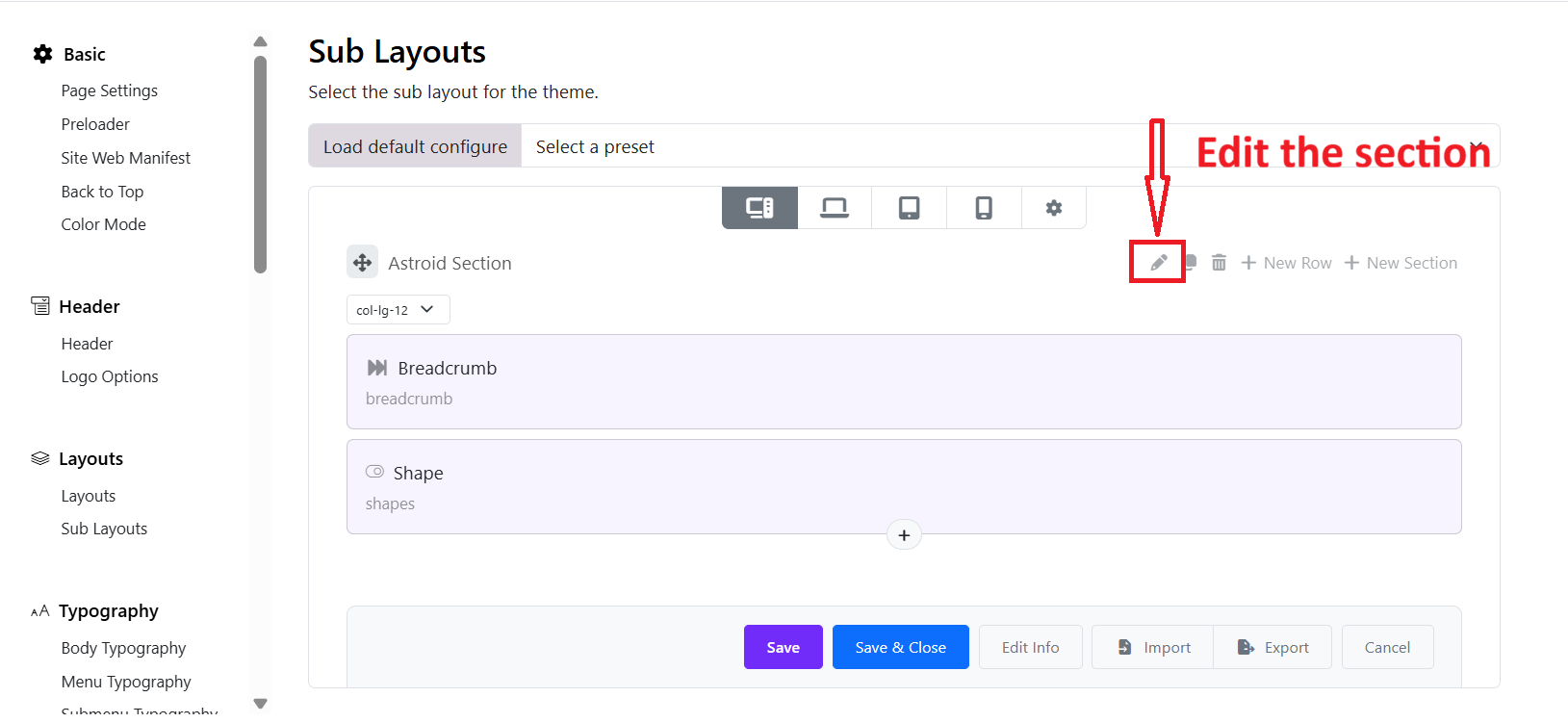
- You’ll see sections like:
3. Edit the Section
- Click edit the section
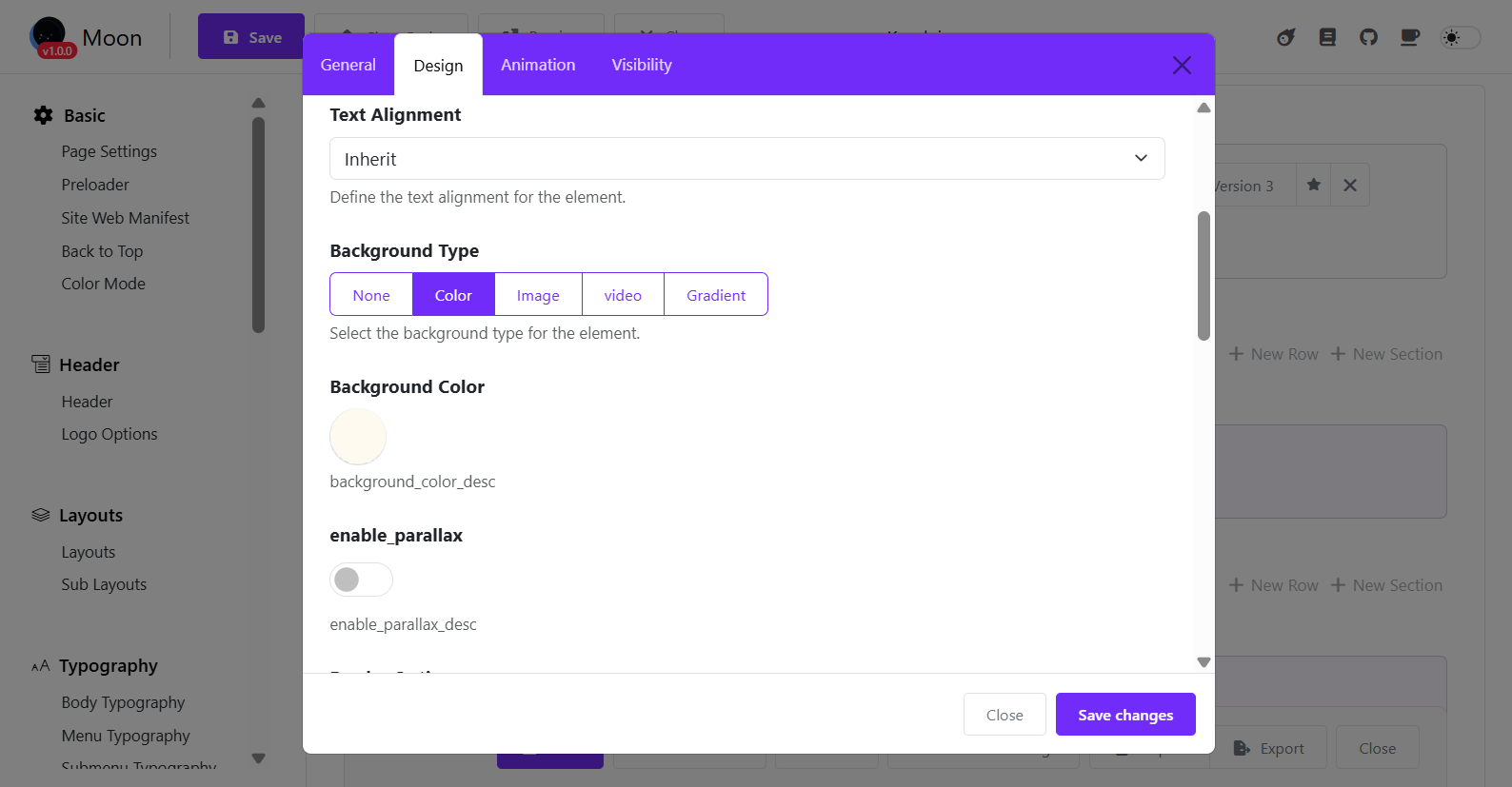
- Open Design Settings > Choose a background type (Color, Image, Video, or none)
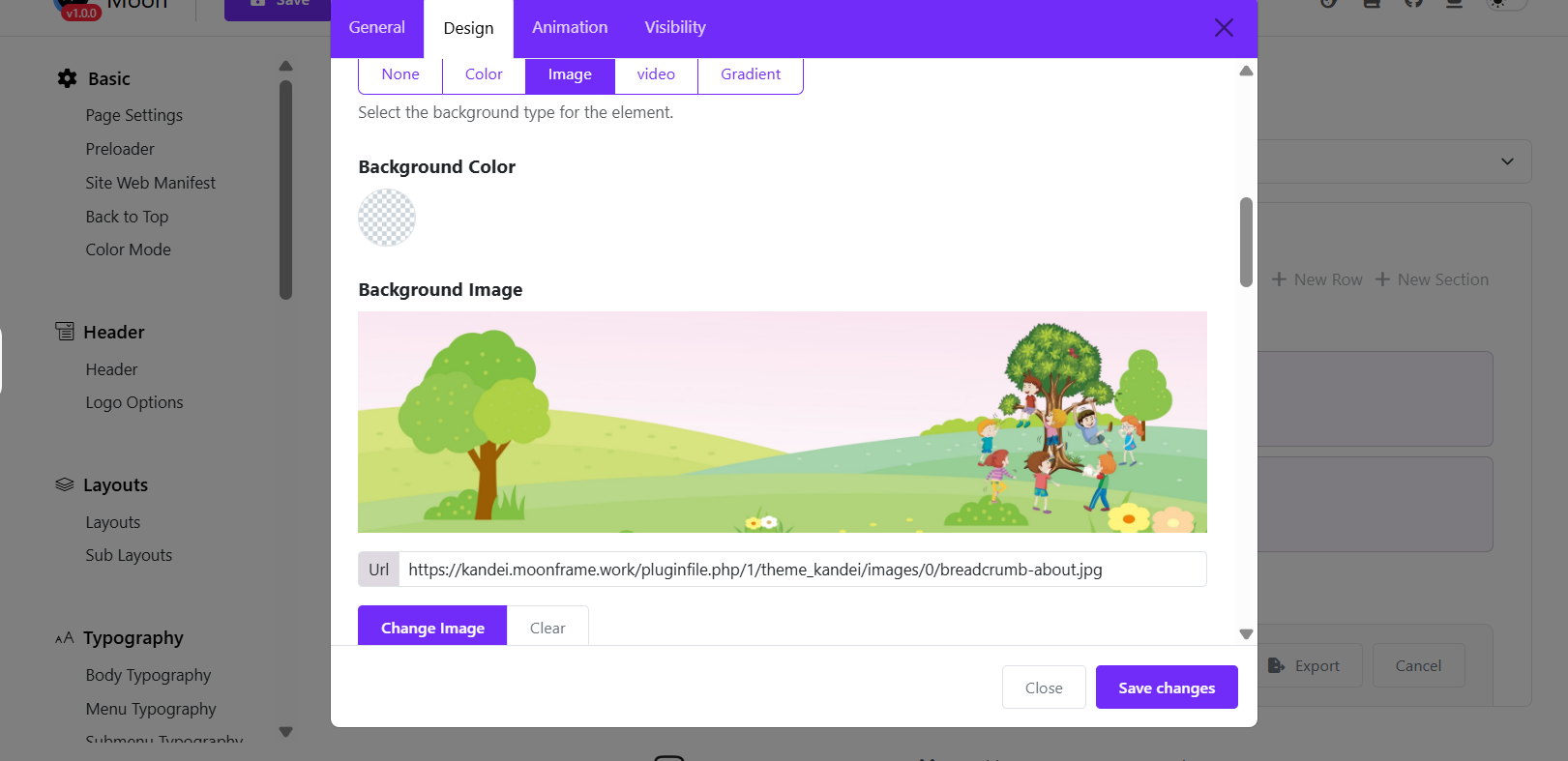
- Under Background Image You can click Change Image, upload a new image or choose another background type.
4. Configure Background
- Background Repeat ex: No Repeat
- Background Size → ex: Cover
- Background Attachment → ex: Fixed
- Background Position → ex: Center Center
- Overlay (optional) → Choose an overlay type (None, Color, Gradient, Pattern)
5. How the Breadcrumb Appears on the Website
- The breadcrumb sub-layout is linked to the main layout. You just need to edit the Main Layout > add the sub-layout to the footer section > Save.
- Any changes you make in the sub-layout will be automatically updated in the website footer.
- No additional setup is required.