Course Enrolment
Overview
Course enrolment in Moodle allows teachers or administrators to control how users join a course. Enrolment can be done manually, automatically, or through other methods depending on the course configuration.
To manage enrolment settings, navigate to:
Courses → Edit a course > Participants → Enrolment methods
This page displays all enrolment methods currently enabled for the course.
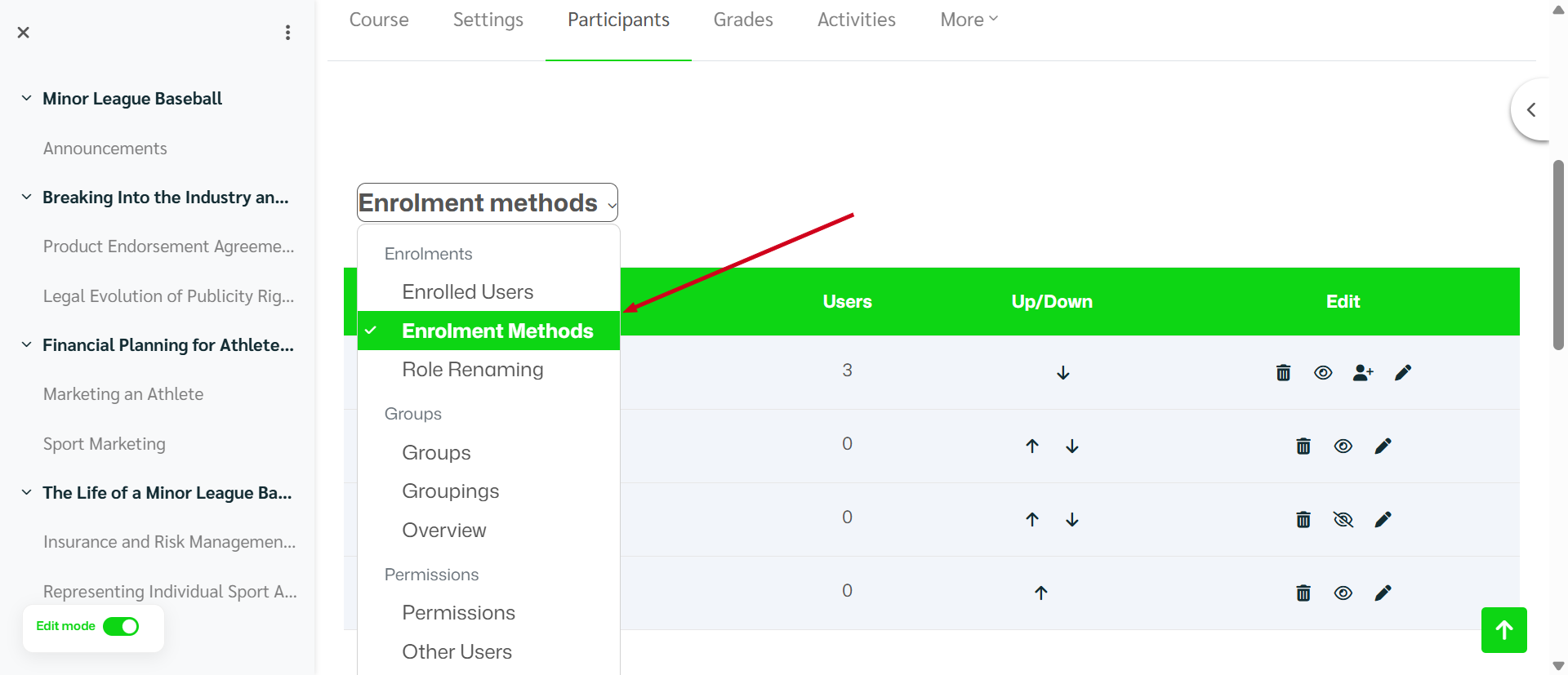
Accessing the Enrolment Methods Page
- Open the course.
- Click Participants in the course navigation menu.
- From the dropdown menu, select Enrolment methods.
You will see a list of enrolment methods available for the course.
Available Actions
Icons in the Edit column usually allow you to:
- 👁 Enable/Disable the enrolment method
- 👤➕ Enrol users manually
- ✏️Edit settings
- 🗑 Delete the enrolment method
Common Enrolment Methods
1. Manual Enrolment
Manual enrolment allows teachers or administrators to add users individually.
How to Enrol a User Manually
- Go to Participants → Enrolment methods
- Locate Manual enrolments
- Click the Enrol users icon (👤➕)
- Search for a user
- Select a Role (Student, Teacher, etc.)
- Click Add, and the selected users on the right will be moved to the enrolled users column on the left.
The selected user will immediately gain access to the course.
2. Self Enrolment
Self enrolment allows users to enrol themselves into a course.
How It Works
- Users can join the course themselves
- An enrolment key (password) may be required
- The teacher controls availability
Configuring Self Enrolment
-
Go to Participants → Enrolment methods
-
Click Edit (✏️) next to Self enrolment
-
Configure settings such as:
- Enrolment key
- Maximum enrolled users
- Start and end date
- Default assigned role
Click Save changes when finished.
3. Guest Access
Guest access allows visitors to view course content without enrolling.
Features:
- Users do not appear in the participant list
- Guests typically cannot submit activities or assignments
Managing Enrolment Methods
Change Enrolment Order
Use the Up/Down arrows to reorder enrolment methods.
This affects which method is used first if multiple enrolment options exist.
Disable an Enrolment Method
To temporarily stop new enrolments:
- Click the eye icon (👁) to disable the method.
- The method becomes inactive but existing users remain enrolled.
Delete an Enrolment Method
To remove an enrolment method completely:
- Click the trash icon (🗑)
- Confirm the deletion.
⚠️ Deleting an enrolment method may remove users enrolled through it.