Advanced Theme Settings
This page controls how themes work and how much users can customize the look of Moodle. Most sites only need a few options enabled.
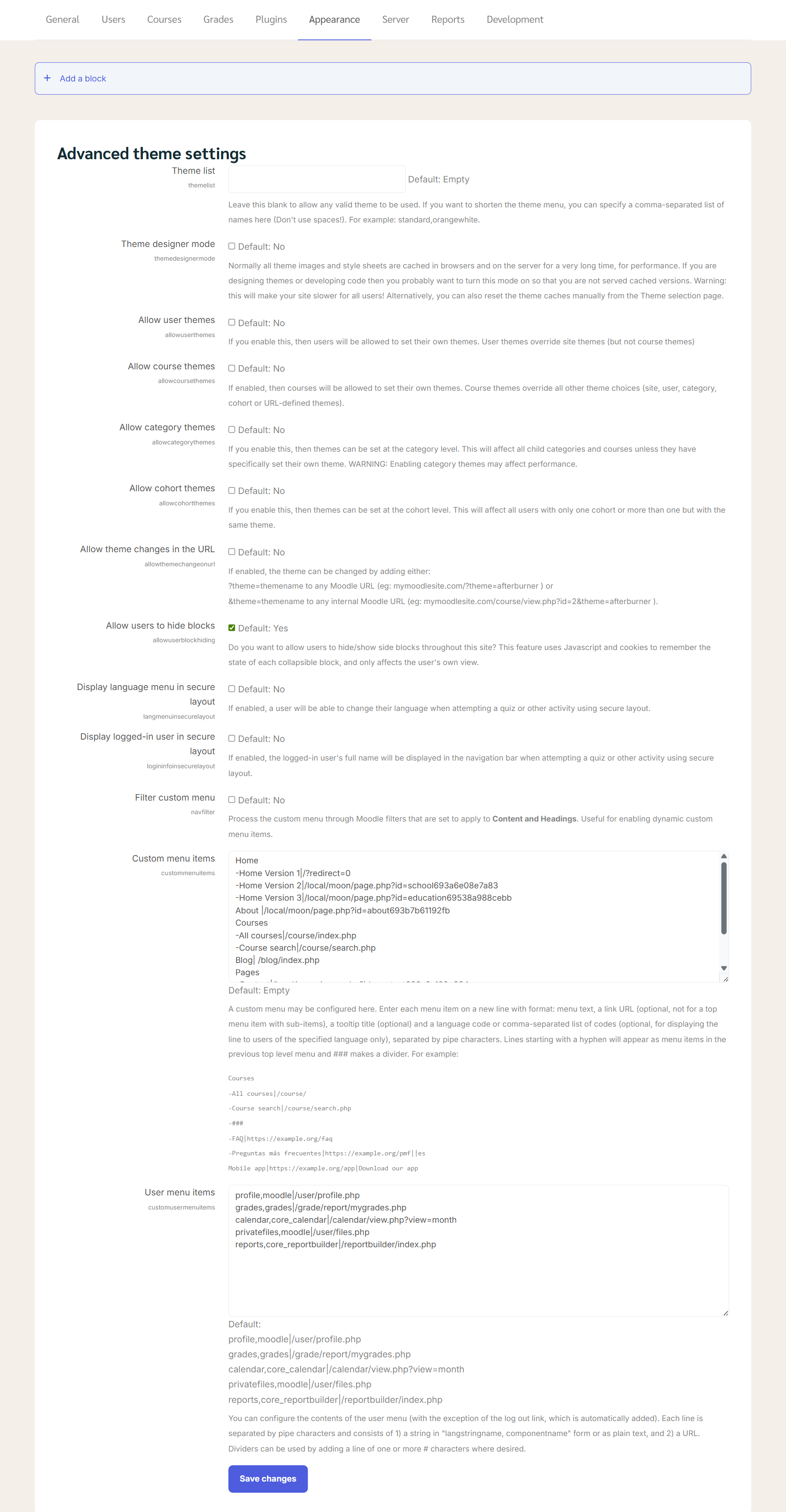
1. Theme list
What it does: Limits which themes appear in the theme selection menu.
How to use:
-
Leave empty → All installed themes are available (recommended).
-
Enter theme names separated by commas (no spaces) → Only those themes appear Example:
boost,classic
When to use: If you want to restrict admins or users to specific themes.
2. Theme designer mode
What it does: Disables caching so design changes appear immediately.
Recommended setting: ❌ No
Turn ON only when:
- You are developing or testing a theme
- You need to see CSS/image changes instantly
⚠️ Warning: This slows down the site for everyone.
3. Allow user themes
What it does: Lets users choose their own theme.
Recommended setting: ❌ No
Enable only if:
- You want users to personalize their Moodle appearance
📌 User themes override the site theme, but not course themes.
4. Allow course themes
What it does: Allows each course to have a different theme.
Recommended setting: ❌ No
Enable only if:
- Different courses need very different layouts or branding
⚠️ Course themes override all other theme settings.
5. Allow category themes
What it does: Allows themes to be set at the course category level.
Recommended setting: ❌ No
⚠️ Warning: Can reduce performance and make appearance harder to manage.
6. Allow cohort themes
What it does: Assigns themes based on user groups (cohorts).
Recommended setting: ❌ No
Advanced use only, usually not needed for most sites.
7. Allow theme changes in the URL
What it does: Allows changing the theme by adding it to the website link.
Example:
?theme=boost
Recommended setting: ❌ No
Why disable it:
- Prevents confusion
- Avoids inconsistent appearance
8. Allow users to hide blocks
What it does: Lets users hide or show side blocks (navigation, calendar, etc.).
Recommended setting: ✅ Yes
Notes:
- Only affects the user’s own view
- Uses cookies to remember preferences
👍 This improves usability without risk.
9. Display language menu in secure layout
What it does: Shows language selector on secure pages (e.g. quizzes).
Recommended setting: ❌ No
Enable only if users need to change language during quizzes.
10. Display logged-in user in secure layout
What it does: Shows the user’s full name in secure pages.
Recommended setting: ❌ No
Mostly optional, cosmetic only.
11. Filter custom menu
What it does: Applies Moodle text filters to the custom menu.
Recommended setting: ❌ No
Enable only if:
- You use dynamic content or filters in menu text
12. Custom menu items
What it does: Creates custom links in the top navigation menu.
How it works:
- One menu item per line
- Use
-for sub-items - Use
###for a divider
Example:
Home
-Courses
--All courses|/course/index.php
--Course search|/course/search.php
###
Blog|/blog/index.php
When to use: To add quick links to important pages.
13. User menu items
What it does: Controls links in the user profile dropdown menu.
Default items include:
- Profile
- Grades
- Calendar
- Private files
- Reports
Recommended: Leave default unless you want to simplify or customize the menu.